Images or clips don’t load
If shots on ShotDeck show up as dark or blank tiles, keep loading, or clips won’t play, it’s usually one of the causes below. Most take less than a minute to check.
1. Your subscription is inactive
Shots and clips need an active subscription. If yours has ended, you’ll see a banner at the top of the site saying your subscription is inactive. You can still see the decks you own and manage who they’re shared with, but the shots inside won’t open until you subscribe again.
Check your status in your account, or see Restart your subscription.
If you use ShotDeck through your company or school and see a message that your organization has no available seats, contact your organization’s ShotDeck administrator.
2. You’re signed in on another computer
A ShotDeck account can be signed in on one computer at a time. If you sign in on a second computer, the first one is signed out and may show “Your session has expired, please log in again.” Sign in again on the computer you want to use. (The iOS and Android apps can be used at the same time as the website. See Can I log in to multiple devices at once?)
3. Refresh or update
- Website: reload the page. If that doesn’t help, do a hard refresh (Ctrl+Shift+R on Windows, Cmd+Shift+R on Mac) to make sure you have the latest version of the site.
- iPhone, iPad and Android: close the app completely and reopen it, and install any update from the App Store or Google Play.
4. Hardware acceleration is turned off
Hardware acceleration lets your browser use your computer’s graphics chip to draw what’s on screen. ShotDeck shows a lot of high-resolution images, so it relies on it. It’s on by default in every major browser, but it sometimes gets switched off, for example by a past troubleshooting step, a “performance” or privacy tweak, or security software.
When it’s off, the rest of ShotDeck can look completely normal while the shots stay blank or load very slowly, and scrolling can feel choppy. If ShotDeck works in another browser on the same computer, this is a likely cause.
Check my browser
This quick test shows a small picture the same way ShotDeck does and tells you if your browser settings are getting in the way. It runs entirely in your browser and doesn’t send anything to us.
How to turn it on
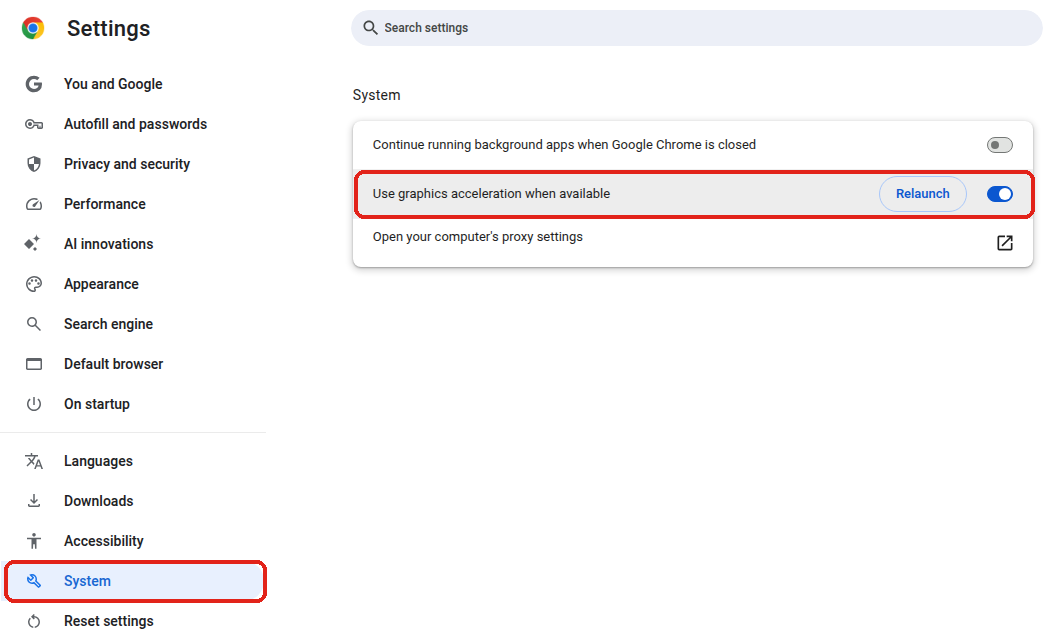
Google Chrome
- Click the three dots in the top-right corner and choose Settings.
- Click System on the left (or paste
chrome://settings/systeminto the address bar). - Turn on Use graphics acceleration when available.
- Click Relaunch. Chrome reopens your tabs.
Microsoft Edge
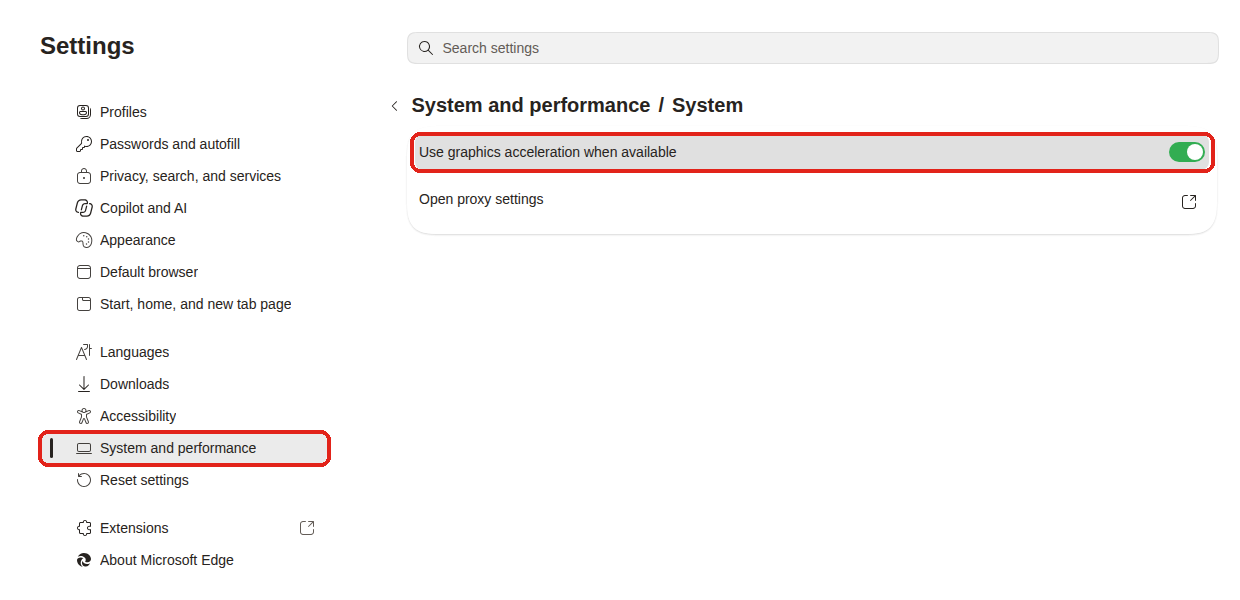
- Click the three dots in the top-right corner and choose Settings.
- Click System and performance, then System (or paste
edge://settings/systeminto the address bar). - Turn on Use graphics acceleration when available, then click Restart.
Firefox
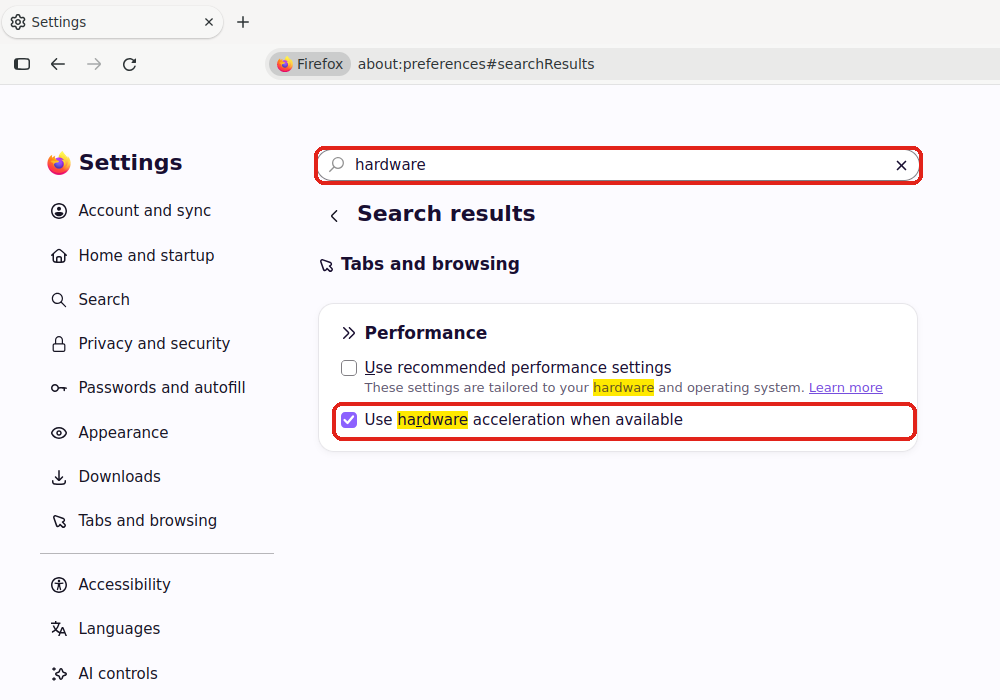
- Click the menu button (three lines) in the top-right corner and choose Settings.
- Type hardware into the Find in Settings box.
- Untick Use recommended performance settings to show the option underneath, then tick Use hardware acceleration when available.
- Quit Firefox completely and open it again.
Safari: there’s no setting to change. Safari takes care of this automatically.
Brave, Opera, Vivaldi and Arc work like Chrome. Open the browser’s settings and search for “graphics” or “hardware acceleration”.
If the switch is greyed out, your computer is probably managed by your company or school. Ask your IT team to turn it on for you.
5. A browser extension is blocking images
Browser extensions such as ad blockers, privacy or tracker blockers, image blockers and dark-mode tools can stop shots and clips from loading. The quickest way to check is to open ShotDeck in a different browser (for example Chrome, Safari, Firefox or Edge). You can also try a private/incognito window, since most extensions are turned off there.
If ShotDeck works in the other browser, an extension is the likely cause. Turn your extensions off one at a time and reload ShotDeck after each one to find the culprit, then add shotdeck.com to that extension’s allow list or leave it off while you use ShotDeck.
6. Something on your device or network is blocking ShotDeck
VPNs, antivirus software and some work or school networks can block the connections ShotDeck uses to load images and clips. To check:
- Turn off your VPN or antivirus web protection for a moment, or add shotdeck.com to its allow list.
- Try a different network, for example your phone’s hotspot.
If ShotDeck works one way and not the other, you’ve found the cause.
On a work or school network? Ask your IT team to allow *.shotdeck.com and *.r2.cloudflarestorage.com (where our clips are stored).
7. Your browser is out of date
ShotDeck works best in the latest version of Chrome, Safari, Firefox or Edge. Most browsers update themselves, but they only finish once you quit and reopen them.
Still not loading? Let us know
You don’t need to troubleshoot any further than this. Report a bug and include whatever you can of the following. It helps us find the problem much faster:
- Where: the website or the iOS/Android app, and your device and browser (for example “MacBook, Chrome”).
- Version number: on the website it’s under the tabs in Account Center; in the apps it’s at the bottom of the Menu tab.
- What you see: blank tiles, a spinner that never finishes, or an error message. A screenshot is ideal.
- Where it happens: a search, a specific deck or title, or everywhere.
- When: roughly what time it happened, so we can match it to our logs.
- Whether it’s fixed in another browser or on another network (steps 5 and 6).
- The “Check my browser” details from step 4, if you ran it. Use the Copy details for support button and paste the result into your report.
If you’re comfortable with it, a screenshot of your browser’s developer console also helps. See How to open the developer console.